
A practical walkthrough of the teacher workflow in WebQuest Generator, from drafting a WebQuest to sharing it with students through a simple link. Use it alongside the WebQuest Guides, then adapt the examples with the Generate a WebQuest.
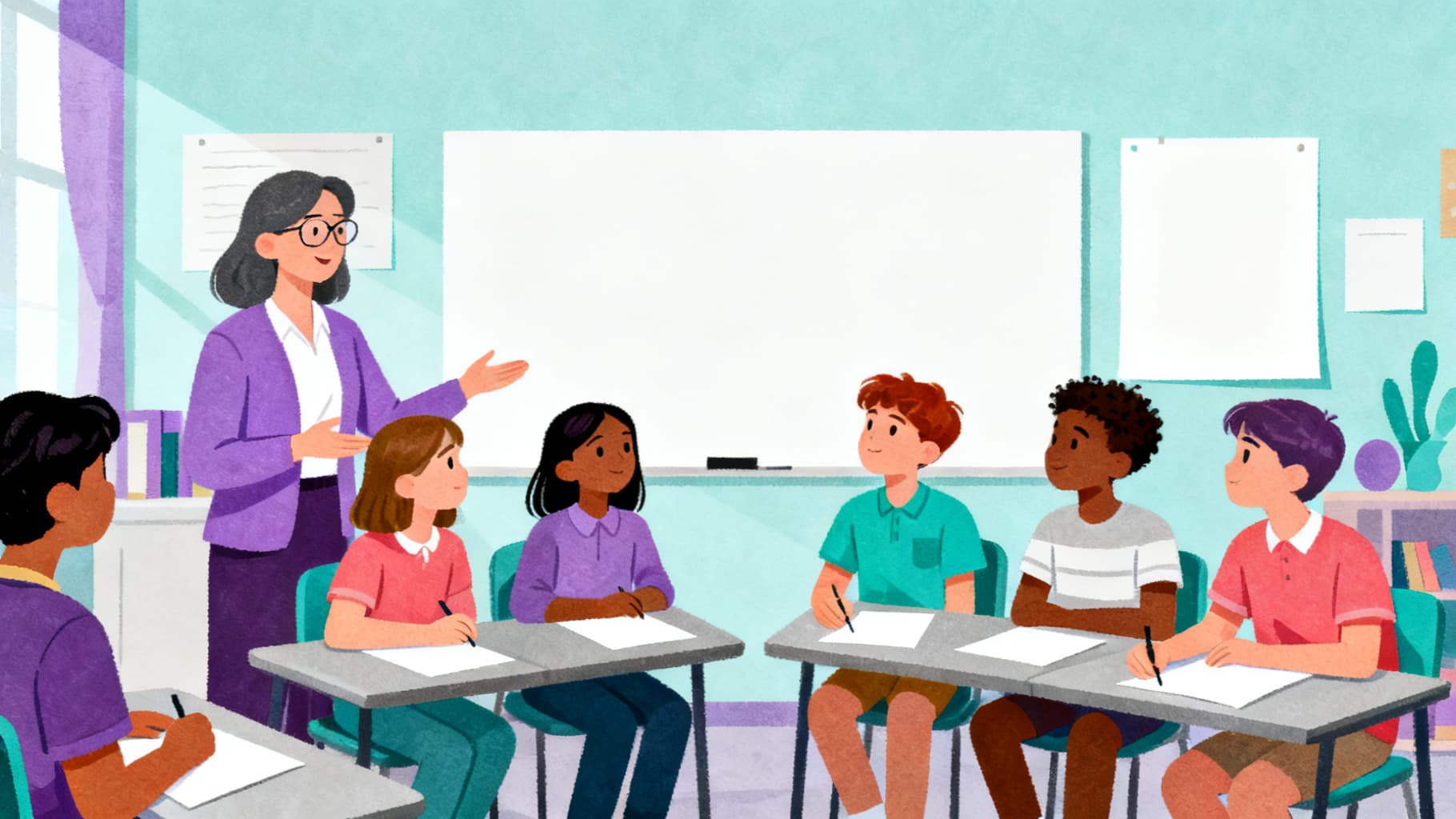
How Do I Plan a WebQuest for My Class?
Start with the same four inputs you would use for any lesson: topic, grade level, subject, and how long the activity should run. WebQuest Generator turns those into a structured draft covering the task, process, resources, worksheet, and rubric.
This is the planning stage, not the assigning stage. Nothing is visible to students yet, so you can generate, regenerate, or edit the draft until it fits your lesson plan.
What Is in the Teacher View I Use to Prepare?
The Teacher View is where lesson prep happens. It holds the answer key, rubric, and teaching notes you can use before class.
Treat it as your lesson plan, not the assignment itself. Review the facilitation notes before publishing so you know where students may need support.
How Do I Assign a WebQuest to Students?
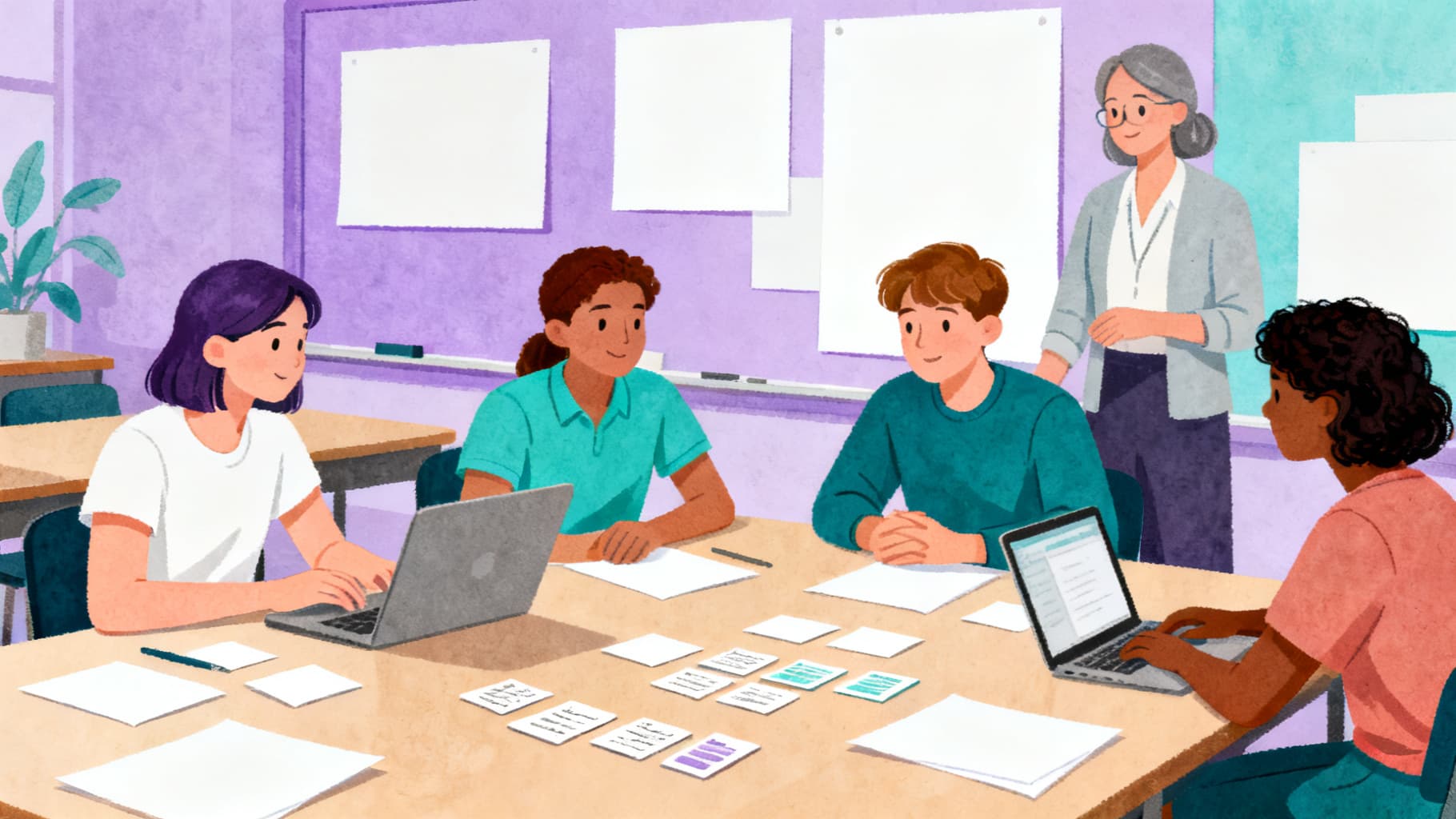
You assign a WebQuest by publishing it, which creates a Student View link. There is no class roster to build and no invite code to distribute.
Share the link through your LMS, class chat, printed handout, or a QR code. Students land directly on the task, worksheet, and resources with no login required.
What Do Students See?
Students only see the Student View: the task, process, resources, and worksheet questions. The rubric, answer key, and teaching notes stay out of the published link.
That separation reduces the risk of accidentally sharing teacher-only materials with a class.
How Do I Collect Finished Work?
WebQuest does not currently include a submission box or grading dashboard, so collect completed work through your normal classroom routine.
Pair the WebQuest link with Google Classroom, a shared document, a printed worksheet, or your school's LMS.
Helpful Related Resources
Related guide
How to Create a WebQuest in 60 Seconds With AI
A complete walkthrough of creating a classroom-ready WebQuest with the AI WebQuest Generator, from entering your topic to publishing student and teacher views.
Read guide →Related guide
How to Log Into WebQuest With Google Sign-In
A complete walkthrough of WebQuest Google sign-in, plus fixes for the most common login errors teachers run into.
Read guide →Related guide
What Is a WebQuest? A Simple Guide for Teachers
A clear teacher-friendly explanation of what a WebQuest is, how it works, and why it supports research, collaboration, and critical thinking.
Read guide →Related guide
WebQuest Generator vs WebQuest Template: Which Should Teachers Use?
Compare a WebQuest generator with a WebQuest template and decide which workflow fits your planning time and classroom goals.
Read guide →Sources and Further Reading
- WebQuest.org: Creating WebQuests: Original WebQuest community resource associated with Bernie Dodge.
- ERIC: Problem-Based Learning: What and How Do Students Learn?: Educational Psychology Review article record for Hmelo-Silver (2004).
- Cambridge Handbook of the Learning Sciences: Project-Based Learning: Krajcik and Shin chapter on project-based learning.
- Library of Congress: A Taxonomy for Learning, Teaching, and Assessing: Library of Congress record for Anderson and Krathwohl's revised Bloom taxonomy.
Ready to build your own?
Start with a structured WebQuest draft, then customize the resources, rubric, and student questions for your class.